Introduction
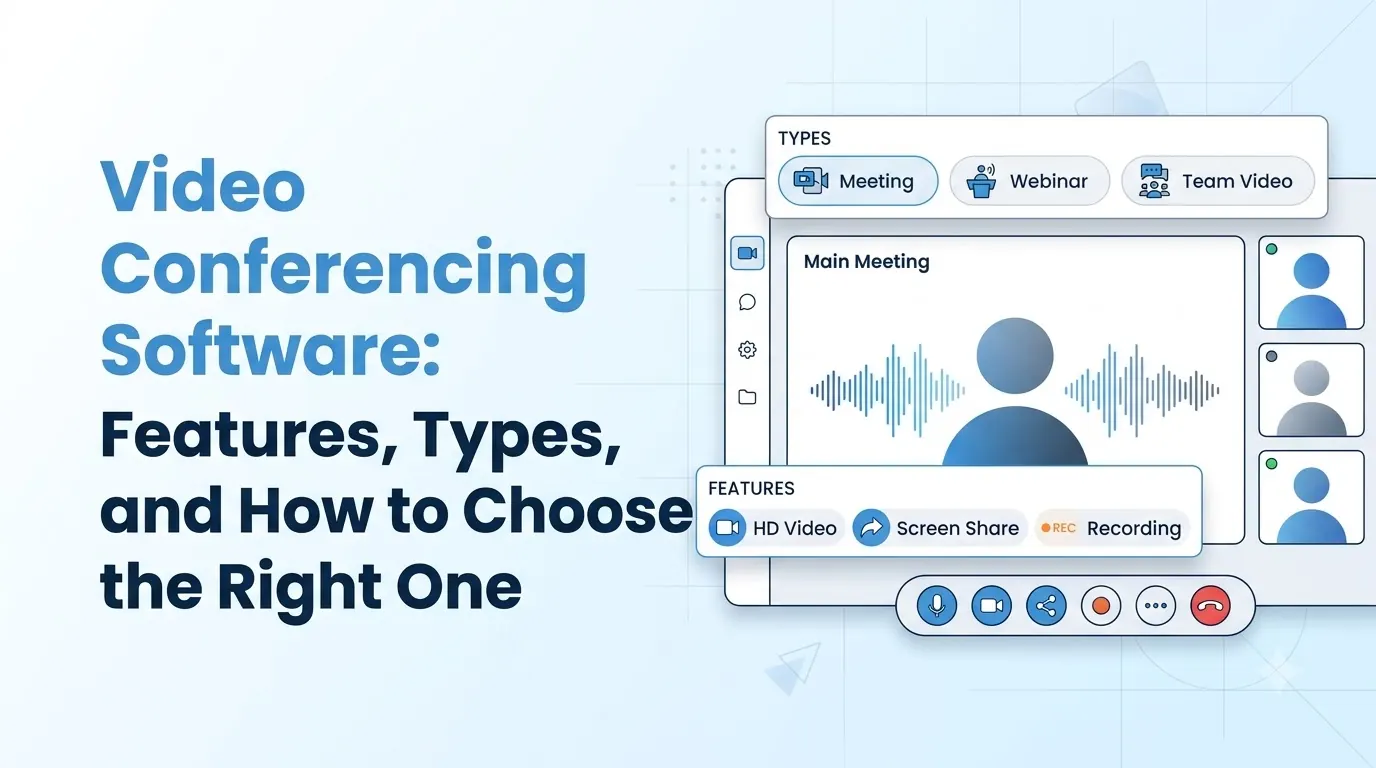
Video conferencing software enables your team to connect face-to-face via video calls, audio calls and screen sharing over the internet.
It eliminates the need to go into the office and lengthy email threads, making it the go-to tool for sales calls, client reviews, interviews and catch-ups.
With many options available, most tools offer similar features.
This guide will walk you through what video conferencing software does, what to look out for, how each type compares and how to select and trial the right video conferencing platform for your team.
- What video conferencing software is and what it should include
- The core features worth checking in any platform
- How it compares with a business phone system, and the three main types
- Accessibility, captions, security and privacy checks
- A simple checklist for choosing, plus the mistakes to avoid
What Is Video Conferencing Software?
Video conferencing software, also known as online meeting software, allows your team to connect in real time. It enables video calls, audio calls, screen sharing, chat and recording.
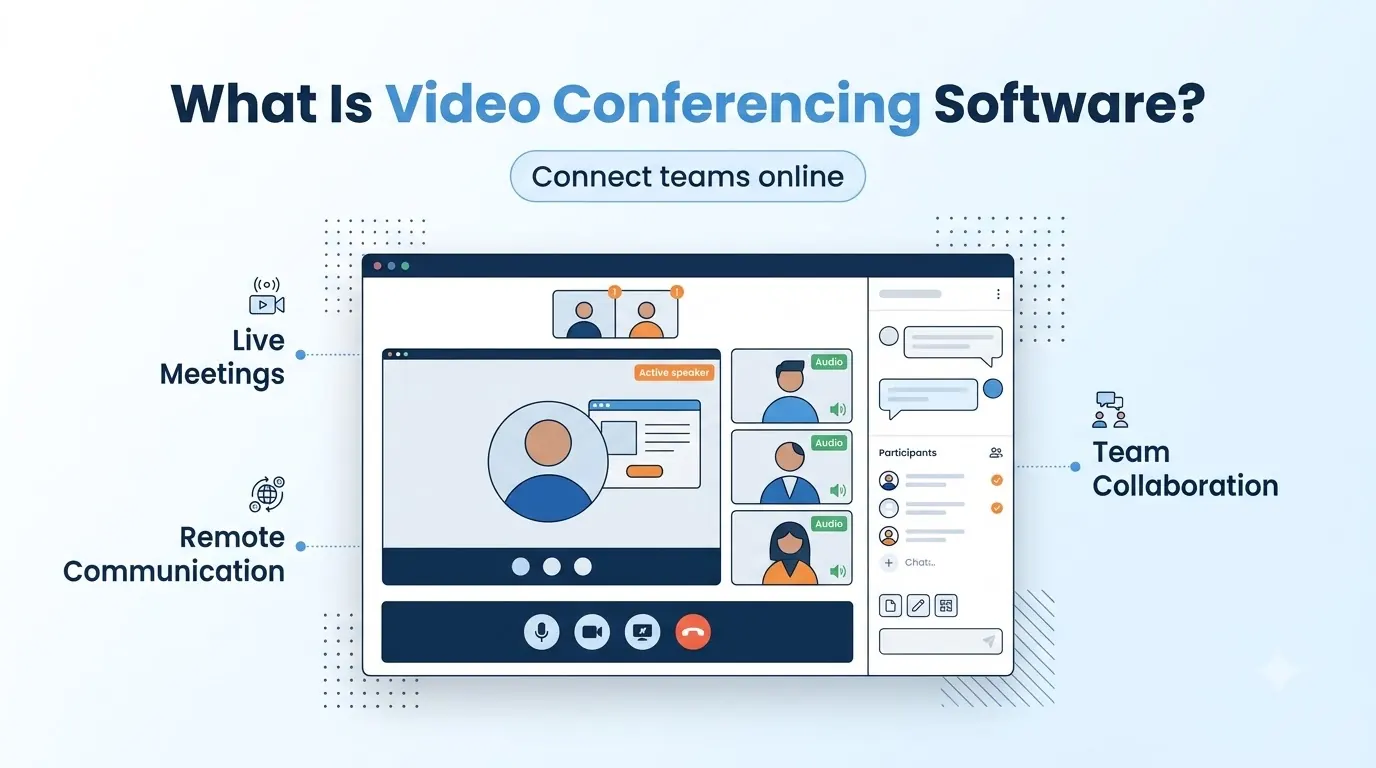
Most tools also offer a link to invite people to your meeting. You can then easily join via a browser or app.
Most will integrate with your existing calendar. The best will also integrate with your CRM to log a sales demo or client call in the same place as your account history.
As virtual meetings have become an integral part of everyday working, the platform you select will affect how easy it is to start the meeting, invite guests and search for information afterward.
Core Features of Video Conferencing Software
While there are lots of features to consider, it is important to look at the key features that will change how your meetings run. Teloz's video meetings offer the features below, which you can use as a checklist.
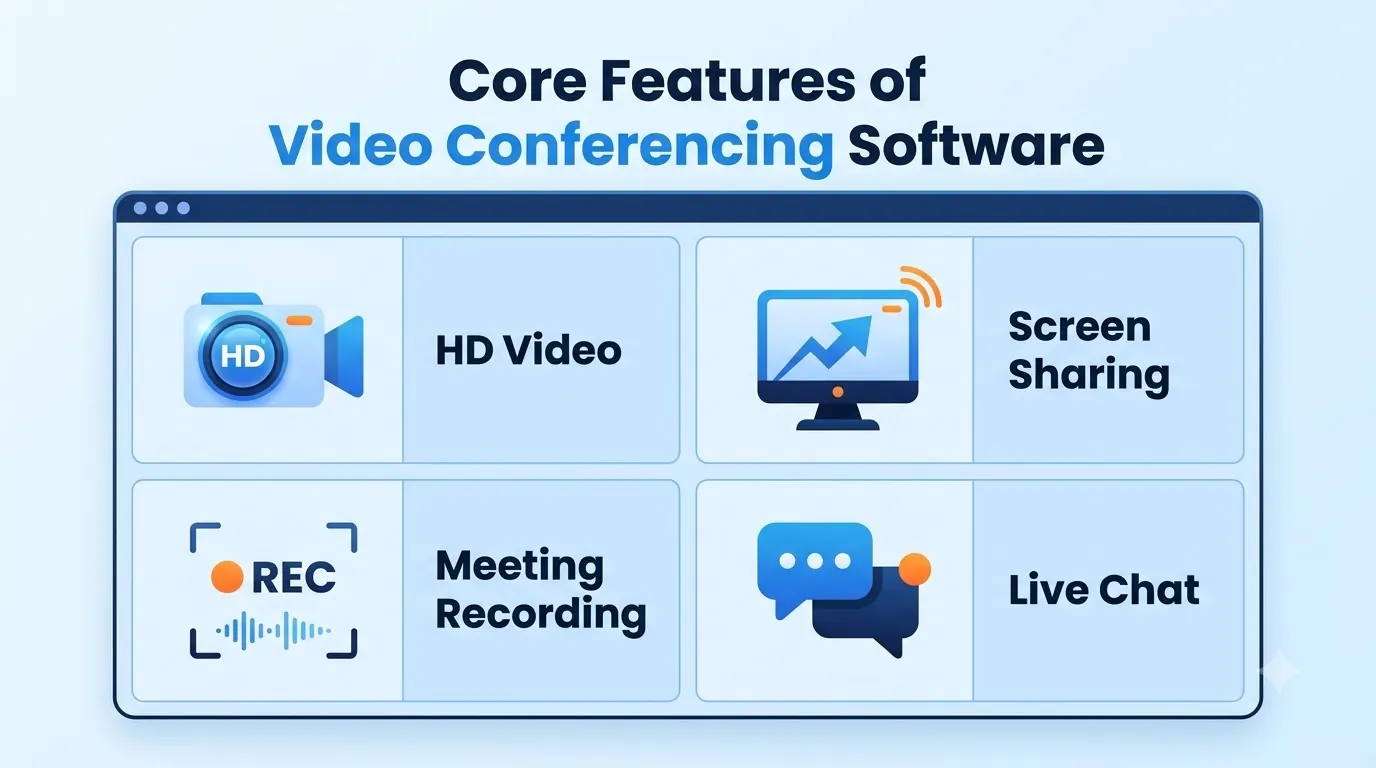
- Browser-based joining. Guests join from Chrome, Safari, Edge or Firefox on desktop or mobile, with no plug-in or download, which removes the usual setup delay at the start of a call.
- Screen sharing, annotation and whiteboard. Share a screen, mark it up live and sketch ideas on a shared whiteboard.
- One-click escalation. A voice call can become a video meeting with one click.
- Calendar integration. Personal rooms and scheduled events work with Google Workspace and Microsoft 365, and invites carry the meeting link, dial-in details and agenda.
- Recording and transcripts. Meetings are recorded and transcribed, and past calls can be searched by keyword.
- CRM logging. Recordings and transcripts can be posted to the linked deal or opportunity in Salesforce, HubSpot or Zoho.
Prioritize the features based on how much your team will use them. If your sales team records all their demos, they will care more about transcripts and CRM logging than whiteboards, whereas if your team uses it for training they may want the opposite.
Video Conferencing Software vs a Business Phone System
Often people ask if they need video conferencing software, a business phone system or both. While they can be used together, they serve different purposes.
Video conferencing is for meetings where you need to see each other and share a screen. A business phone system handles numbers, incoming and outgoing calls, call routing and voicemail.
Our guide to the business phone system covers the calling side in detail.
| Video conferencing software | Business phone system | |
|---|---|---|
| Main job | Face-to-face meetings and screen sharing | Calls, numbers, routing and voicemail |
| Typical users | Teams, clients and candidates | Employees and customers who call in |
| Key tools | Video, screen share, whiteboard, recording | IVR, queues, extensions, call recording |
| Works best when | You need visual collaboration | You need reliable customer calling |
Many teams will want both tools together so they can easily move from a phone call to a video meeting. A platform offering both means you don't have to manage two vendors.
Types of Video Conferencing Software
There are three types you will meet when shopping, and each suits a different situation.
| Type | What it is | Best for | Main trade-off |
|---|---|---|---|
| Standalone meeting app | A dedicated tool built only for video meetings | Teams that only need meetings | A separate login and admin, and no shared number or inbox |
| Suite bundled with office software | Meetings included with an email and document suite | Companies already standardized on one suite | Calling and customer features are often limited |
| Unified communications platform | Meetings, calling, chat and texting in one service | Teams that want one platform and one admin | You need to confirm each part is strong enough |
If your team only uses it for internal calls occasionally, then a standalone or bundled tool would be sufficient. However, if you receive calls, messages and meeting requests from customers, it is usually easier to go with a unified platform.
Accessibility and Captions in Video Conferencing Software
It is easy to forget about accessibility until someone on your team needs it. Live captions make meetings easier for people who are deaf or hard of hearing, and for those joining from a noisy location or in a second language.
The W3C's Web Content Accessibility Guidelines give you a benchmark. Success criterion 1.2.4, Captions (Live), requires captions for live audio in synchronized media at Level AA.
WCAG is written for web content, but it is a useful yardstick when you compare meeting tools.
- Live captions. Ask each vendor directly whether live captions are available and in which languages.
- Transcripts after the meeting. Teloz transcribes meetings and makes the transcript searchable, but ask any vendor separately about captions during the call.
- Keyboard and screen-reader support. Check that the controls work without a mouse.
- Readable layouts. Look for clear contrast and the option to pin the speaker or the shared screen.
Security and Privacy in Video Conferencing Software
As meetings will contain customer information, pricing and internal decisions, it is important to consider security. Find out what security features are included and what you can control as an admin.
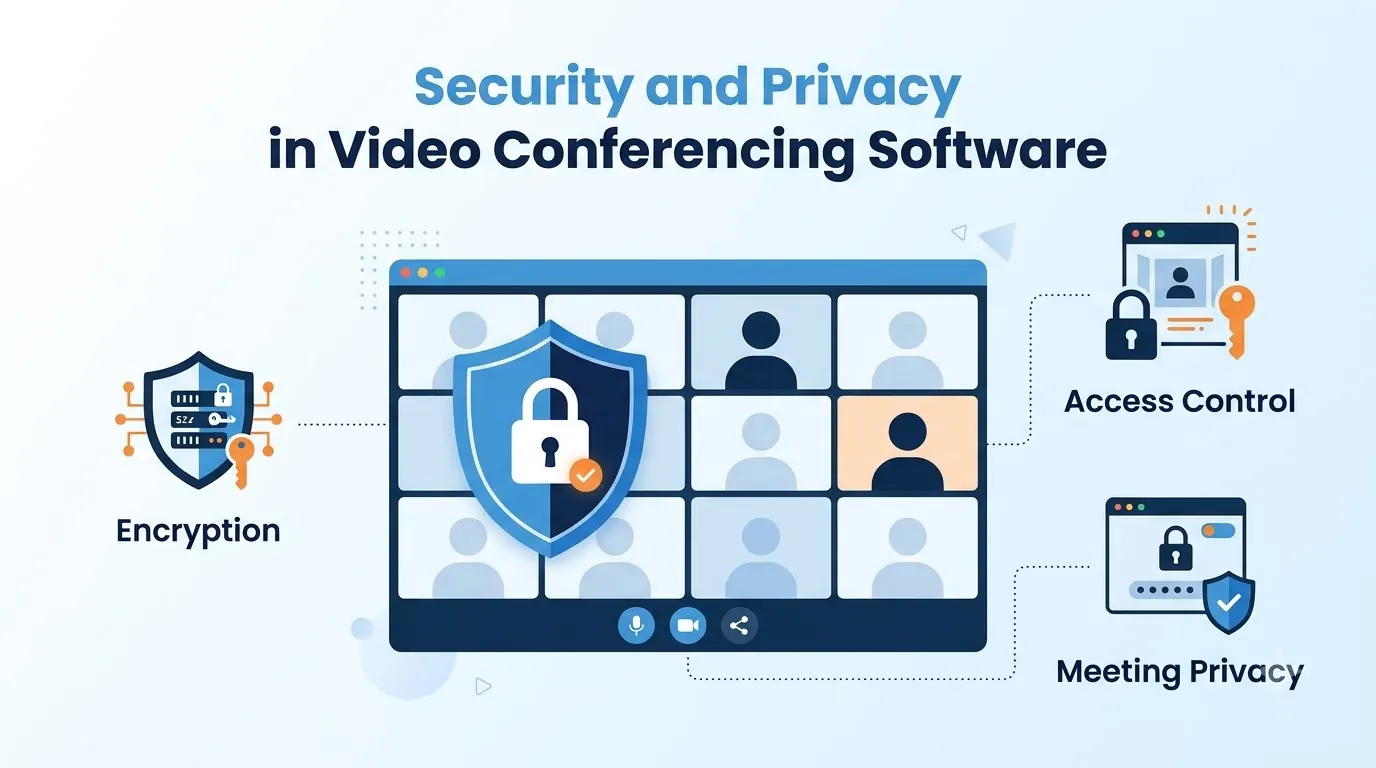
- Encryption. Look for encrypted connections and encryption for stored recordings. Teloz states AES-256 encryption and encrypted connections.
- Data location. Know where recordings and transcripts are stored. Teloz states its data centers are in the US.
- Retention controls. Admins should decide how long recordings and transcripts are kept.
- Guest and access controls. Limit who can join, share a screen or record.
- Monitoring. Ask how the service is monitored. Teloz states around-the-clock network monitoring.
Make sure you tell participants when you're recording. Check the rules around recording consent where your attendees are located. Laws vary depending on where you are.
How to Choose Video Conferencing Software
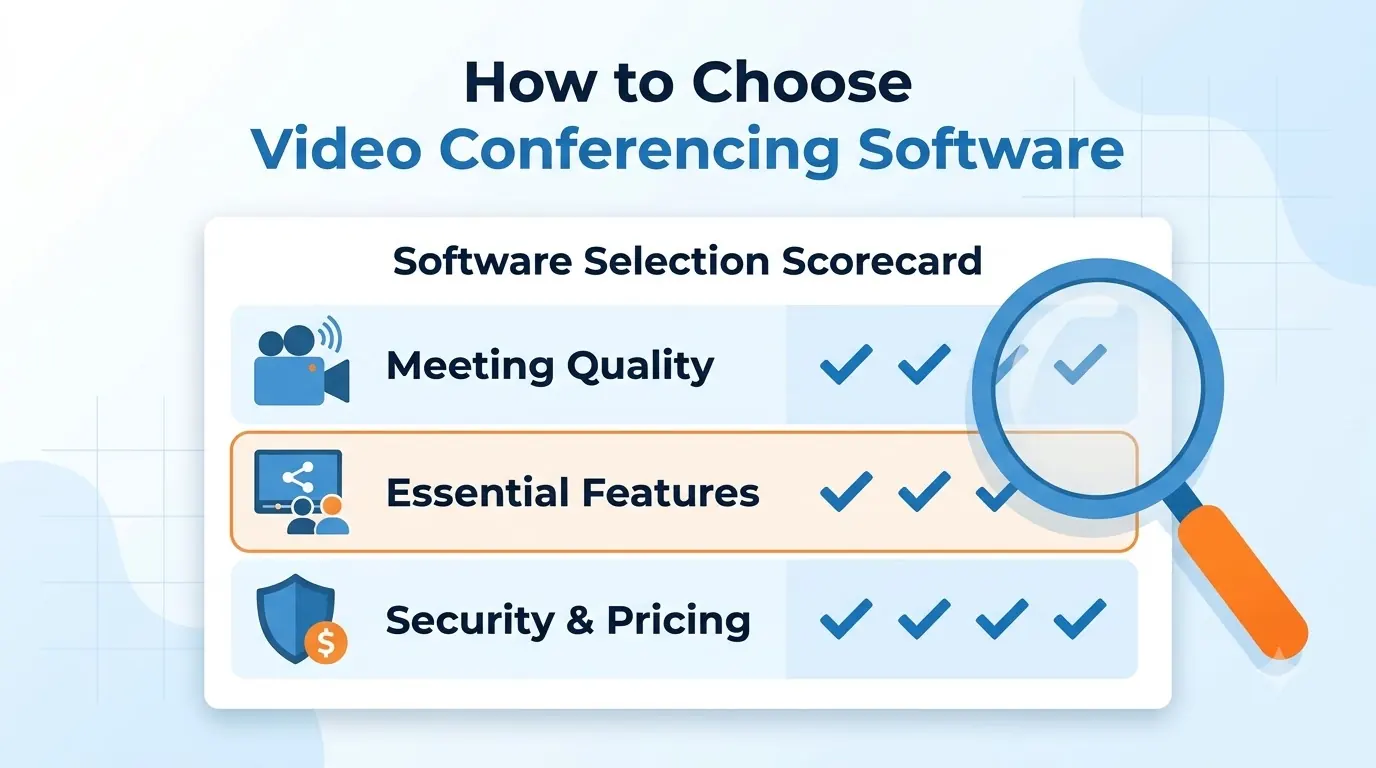
To select the right tool, make a note of your requirements first. Then work through these points in order.
- Meeting size and room types. Count your usual and largest meetings, then get the stated limits in writing. Teloz offers standard and large rooms and refers to its pricing for details.
- Join experience. Test how a first-time guest joins. If it takes more than a click or two, expect complaints.
- Integrations. Confirm calendar, CRM and chat connections that your team uses every day.
- Recording, transcripts and retention. Decide what you need to keep, for how long and who can see it.
- Security and accessibility. Check the controls in the sections above against your own requirements.
- A real trial. Run live meetings with real users. Teloz offers a 14-day free trial with no credit card required, so you can test calls before you commit.
“Write your needs down before the demo, then test with real meetings and real guests.”
Common Mistakes When Choosing Video Conferencing Software
Most people regret the same small number of mistakes. Check your plan against this list.
- Choosing on the demo alone. A polished demo hides audio, bandwidth and join problems that only live meetings reveal.
- Ignoring guests. If clients or candidates struggle to join, the tool will cost you more than it saves.
- Overlooking calling. If customers also phone your team, pick a platform where meetings and calls share one login.
- Skipping admin controls. Retention, access and guest limits are hard to add later.
- Not checking limits. Ask for participant and recording limits in writing before you sign.
A short checklist, agreed by those who will use the platform daily, will help avoid most of these issues.
Conclusion
You should be able to start, join and search for your meetings easily.
Choose the type of video conferencing software that fits your team's way of working: if you need simple internal calls, use a standalone app, and if you need to bring meetings, calls and messages together, use a unified platform.
Make a note of your meeting sizes, integrations, security requirements, accessibility and retention needs. Trial the tool with real users and your next video conferencing software will be a valuable addition.


